iDogBone - Modify Category
When working in the Part environment (*.ipt), the Modify category from PowerPack for Inventor contains the iDogBone command.

iDogBone command
About Dogbones
Dogbones are typically used as a workaround to a problem that’s the result of cutting material using a mill or router. Because you’re cutting something using a spinning cutter, the resulting cut always has round internal corners.
Because of the rounded corners, the yellow part no longer fits into the green part because of the interference highlighted as red in the picture below, on the right:
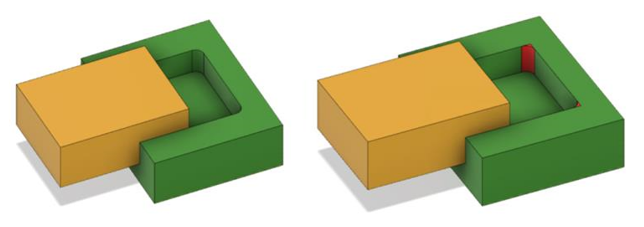
Dogbone
One solution to solve the problem is to manually remove the rounded corner, typically with a chisel. However, if you’re using CNC to automate the cutting of an object, you probably don’t want to have to perform a lot of additional manual work to finish the part.
Another solution is to remove more material in the CNC process to clear out the corner. The extra machining performed to remove this material is commonly referred to as a dogbone because in some cases it can resemble the shape of a bone you would feed to a dog.
The Dogbones add-in supports the creation of several shapes of dogbones, as described below.
How to Use the Command
On the Modify panel, select iDogBone. A dialog will be displayed:
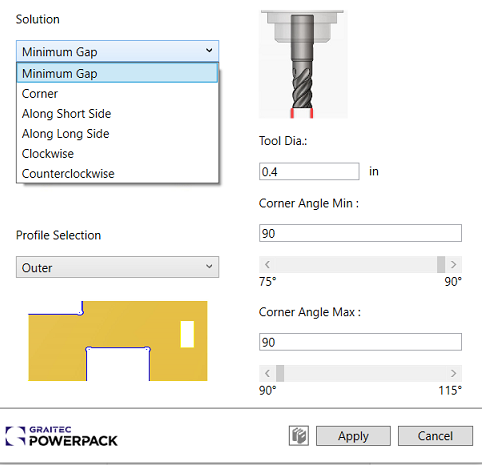
iDogBone dialog
Solution
1. Minimum Gap
As shown below, in this method the removed material is minimized to reduce the opening because of extra machining. The center of rounds at each corner is moved inward along the bi-sector direction of the corner (ex. 45 Degree for all the square corners).
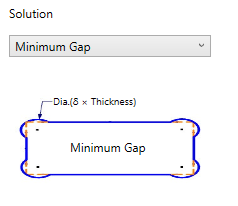
Minimum Gap
2. Standard
As shown below, in this method the center of removed rounds are positioned on the corners directly, which would allow for more material to be removed compared to the Minimum Gap method.

Standard
3. Long Side
As shown below, in this method, the remove rounds at each corner are tangent to the shorter legs of the corner, in other words, the center of the rounds are positioned on the longer leg of each corner.

Long Side
4. Short Side
As shown below, in this method, the remove rounds at each corner are tangent to the longer legs of the corner, in other words, the center of the rounds are positioned on the shorter leg of each corner.
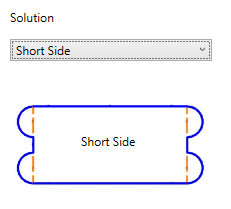
Short Side
5. Circular Clockwise
As shown below, in this method, the remove rounds at each corner are tangent to one of the corner legs in a clockwise fashion.

Circular Clockwise
6. Circular Counterclockwise
As shown below, in this method, the remove rounds at each corner are tangent to one of the corner legs in a counterclockwise fashion.

Circular Counterclockwise
Profile Selection
Select the Profile: Inner or Outer or Both for this operation:
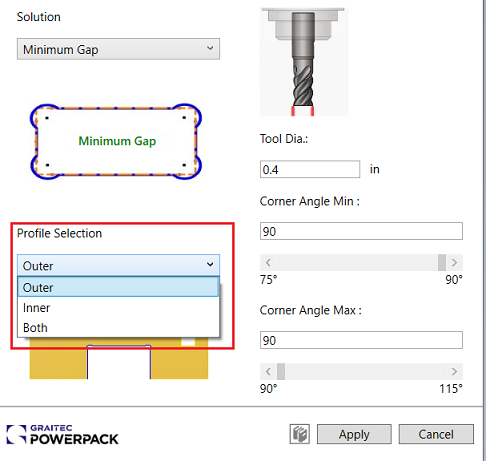
Profile Selection
1. Outer Profile
Below is an example of Outer Profile - this includes all the cut-outs where a tab or block with square corners must fit in after machining.

Outer Profile example
2. Inner Profile
Below is an example of Inner Profile - this includes all the inner pockets or slots where a tab with square corners must fit in after machining.
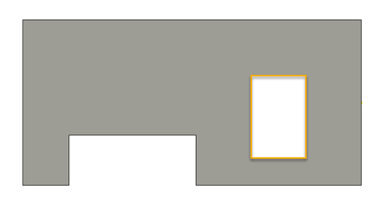
Inner Profile example
3. Both
This includes both Inner and Outer profile for the placement of the rounds at the corners. The command will automatically detect the inner corners on each profile and skip the corners where ideally, we do not need material removal.
Tool Diameter
The next step is to enter the corresponding Tool Diameter. It is recommended to include a proper offset value to reflect the wear and tear of the cutting tool for perfect result.
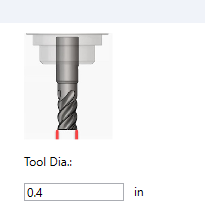
Tool Diameter
Angle Range Selection
This section allows you to select the range angle detection for the corners. This could be a corner with a minimum of 75 degree up to a maximum of 115 degree.

Angle Range

Angle range example 1
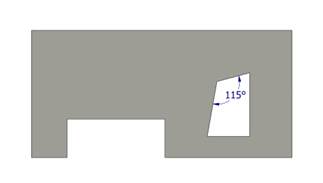
Angle range example 2
Press Apply and then select a face. The command will remove the material based on the settings above. If there is no spot detected it will warn you with the following message:

Warning
Related Topics